
Where to find it
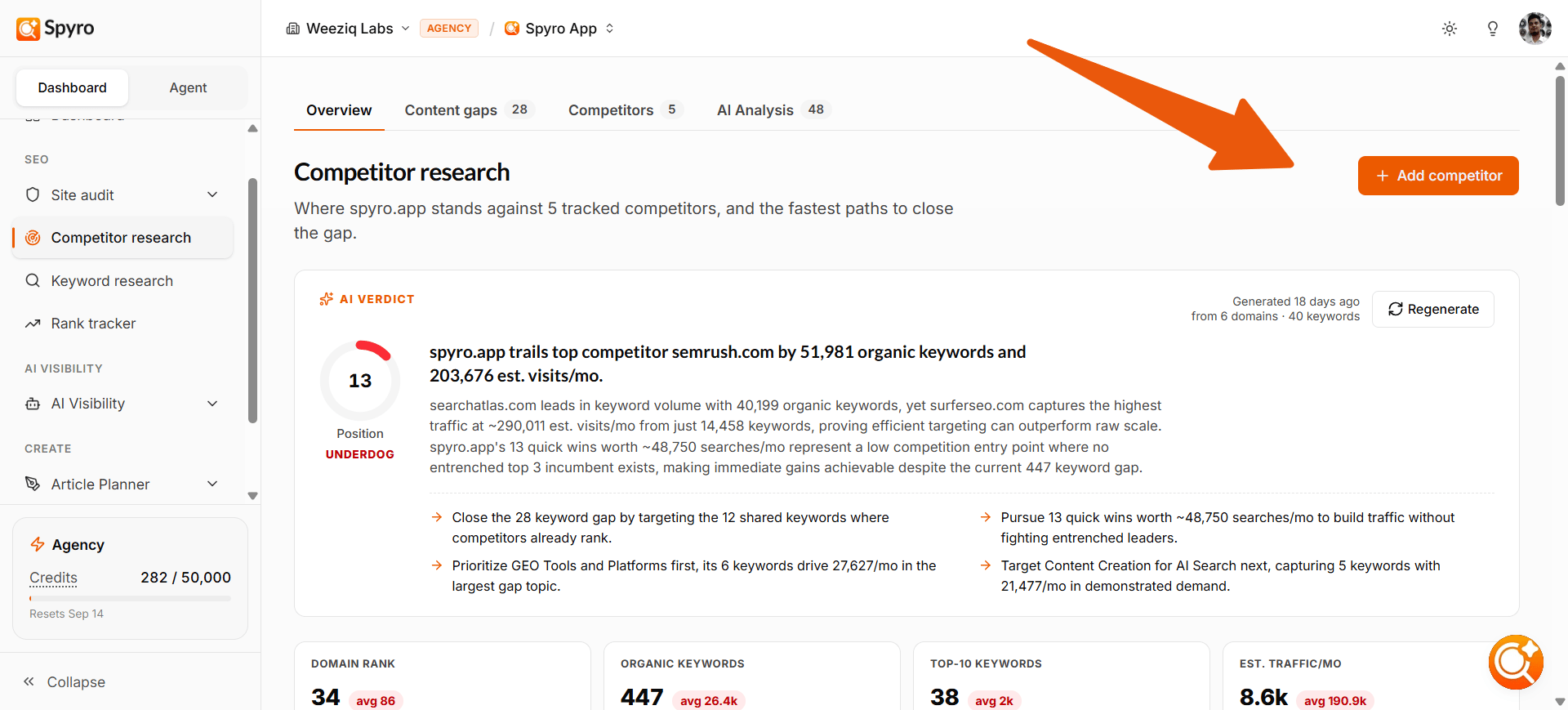
Open Competitor research from the sidebar inside any workspace. The dashboard has four tabs: Overview, Content gaps, Competitors, and AI Analysis.Running a scan
What you enter
When you start a new scan, you’ll set up the following:- Your domain — pulled automatically from your workspace settings. This is excluded from the competitor list.
- Competitor domains — enter 1 to 5 domains you want to compare against.
- Location — the country or region to check rankings in.
- Language — the language to check rankings in.
- Competitor ranking position — how deep into search results to look: top 10, 20, 50, or 100 positions.
- Minimum search volume — optionally filter out very low-volume keywords.
- Maximum keyword difficulty — optionally cap results by difficulty score (1-100).
- Include subdomains — choose whether to include subdomains in the analysis.
Your own domain is automatically excluded from the competitor list. You cannot add it as a competitor.
Credit cost
Each competitor domain costs 150 credits. For example, scanning 3 competitors uses 450 credits. Spyro checks that you have enough credits before the scan starts. If you don’t have enough, the scan is blocked and you’ll see a message explaining how many credits you need and how many you have left. Credits are charged only after a scan completes successfully. If a scan fails, you are not charged.See Plans & billing for the full list of credit costs and your plan’s monthly credit pool.
What happens while the scan runs
The scan runs in the background. You can close the page and come back later - your results will appear when the scan finishes. When the scan finishes, the Overview tab loads automatically.Overview results
The Overview tab shows a high-level comparison of your domain versus each competitor:- Domain rank — how each domain compares overall.
- Organic keywords — total keywords each domain ranks for.
- Top-10 keywords — how many keywords each domain ranks in the top 10.
- Estimated traffic/month — estimated monthly organic traffic for each domain.
- AI verdict — an AI-generated summary of the competitive landscape.
- Topic-gap cluster cards — highlight areas where competitors outrank you, linking directly into the Content gaps view.
Content gaps
Click the Content gaps tab to see the full keyword-level comparison. This is where you’ll spend most of your time planning content.Gaps, Shared, and Quick wins
Results are split into three bucket tabs:- Gaps — keywords at least one competitor ranks for that you don’t rank for at all.
- Shared — keywords both you and your competitors rank for.
- Quick wins — gap keywords where at least one competitor ranks in the top 10 and you rank lower or not at all. These are your highest-priority opportunities.
Topic clusters
Spyro uses AI to group gap keywords into topic clusters, helping you plan content around themes rather than individual keywords. Clusters only form when there are at least 8 gap keywords, and up to 6 clusters are shown. Click a cluster chip to filter the keyword table to that topic.Keyword table
The keyword table shows detailed data for every keyword in the scan:Write article
Click Write article on any keyword row to jump straight to the AI writer with that keyword pre-filled. This is the fastest way to turn a gap into content.Track keyword
Click Track keyword to add any keyword from the table to your rank tracker so you can monitor whether your new content closes the gap.Export to CSV
Click Export to CSV to download the full keyword table for offline analysis, reporting, or sharing with your team.Competitors tab
The Competitors tab shows profile cards for each competitor in the scan, including their headline metrics and how they compare to you at a glance.AI Analysis tab
The AI Analysis tab provides an AI-generated synthesis of the scan results, summarizing the most important findings and strategic takeaways from the competitive comparison.When you don’t have enough credits
If your credit balance is too low to cover the scan, Spyro blocks the scan before it starts and shows you:- How many credits the scan would cost.
- How many credits you have remaining.
Error and empty states
- No scan yet — when you first open Competitor Research, you’ll see an empty state with a prompt to start your first scan.
- Scan failed — if a scan fails (for example, due to a temporary data issue), you’ll see an error message. You are not charged credits for failed scans.
Limits
Related
Competitors
See the bigger picture of competitor tracking in Spyro.
Plans & billing
Credit costs, plans, and how credits reset.